

Returns a list of unique values from a range or array, eliminating duplicates and simplifying data analysis and reporting tasks.
Formula Layout:
=UNIQUE(array, [by_col], [exactly_once])
Example:
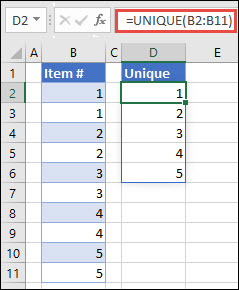
=UNIQUE(B2:B11) – Returns a list of unique values from cells A1 to A10
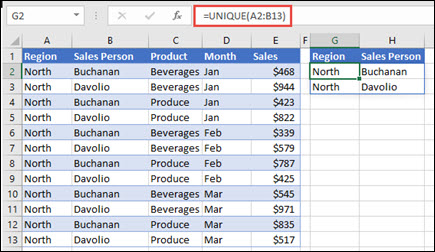
=UNIQUE(A2:B13) – Returns unique values comparing by columns in the range A2:B13
Finds and returns the relative position of a specified item in a range or array, providing more flexibility than traditional lookup functions by supporting approximate and exact matches, as well as searching in any direction.
Formula Layout:
=XMATCH(lookup_value, lookup_array, [match_type], [search_mode])
Example:
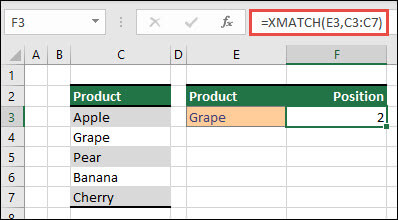
=XMATCH(E3, C3:C7, 0, 1) –
This formula would search for the value in cell E3 within the range C3:C7 and return the relative position of the first exact match, searching from first to last.